Support For Using the Dibs System
OVERVIEW
This page is intended to provide support to WMLL Families who are learning how to use the Dibs system. Please read through the following guidelines if you are using Dibs for the first time.
FINDING DIBS
The first thing you want to do is go to the Dibs Page for WMLL. On our home page there is a menu bar across the top and on the right-hand side of that menu bar is a Dibs link. Click on that and it will take you to this page WMLL Spring/Summer 2026 Season.
At this point you will need to make sure you are logged in to your SportsEngine account that you used to sign up for the 2026 Spring/Summer Season Dibs signups. If there are other Parent/Guardians added to the athlete profile then they will also be able to login to their SportsEngine account.
Once you are logged in and you are on the Dibs home page (link above) you should see a page that looks like this screen shot here:
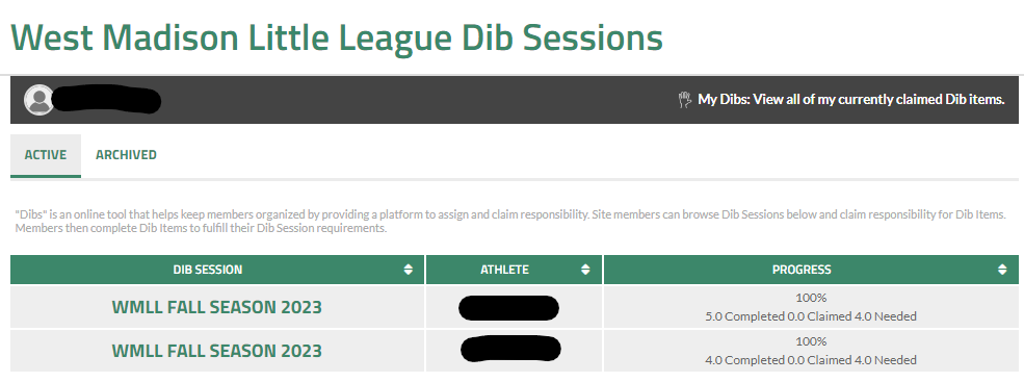
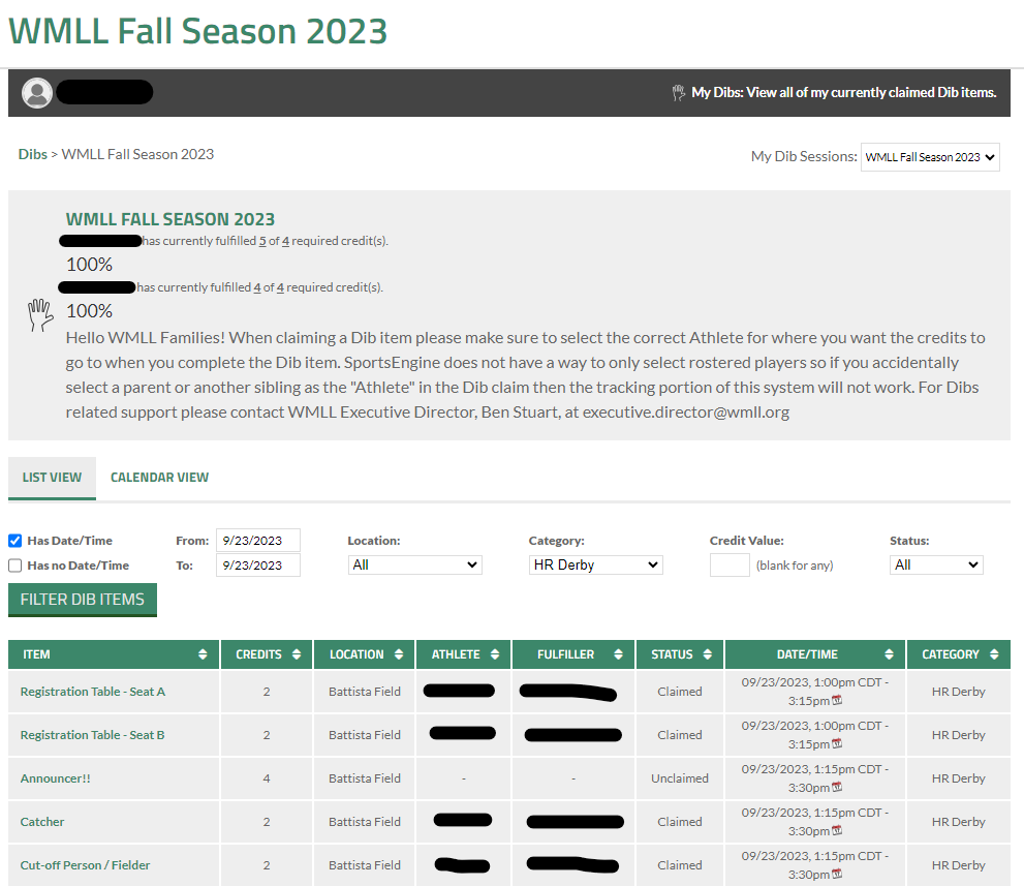
Now you want to click on the Active Dibs Session where you want to go to claim Dibs. The name of the active session will normally be whatever season is currently actively holding games. This will take you to a page that looks something like this:
USING THE FILTERS
The view you first see should default to the LIST VIEW tab as seen on the screen shot above. From here there are a number of filters that you can use to help find the Dibs opportunities you are looking for. It is very important to know how the filters work.
Starting left to right you have two check boxes for filtering. One is titled "Has Date/Time" and the other is titled "Has no Date/Time". Normally you are going to only want the "Has Date/Time" check box clicked because most Dibs opportunities are a specific date and time. So make sure that box is checked. Unchecking the "Has no Date/Time" box is normally what you want to do.
Then the From: and To: boxes are critical. You have to make sure the range of dates in these two boxes include the dates you are looking for opportunities. Click on each one and a calendar will pop up and you can select the range of dates you're looking for.
Location: should default to "All" but if you want to narrow things down you can select the dropdown. Let's say you want to find a scoreboard controller Dib on Minor Field. Use this dropdown and select Minor Field and it will eliminate all the other fields from the view below.
Category: once again this should default to "Any" and should be left there unless you know for sure there is a certain category you are looking for.
Credit Value: if you really want to narrow things down and are looking for a Dibs opportunity that has a specific number of credits you can use this filter. Most of the time we recommend leaving this blank so you can see all Dibs regardless of the number of credits it would earn.
Status: if you want to clear out all the Dibs that are already claimed you can use this dropdown to filter by "Unclaimed" or something else depending on what you are looking for. Remember that leaving it as "All" is the safe way to go if you are new to the system
Important - now after adjusting the filters you must click the green box "FILTER DIB ITEMS" to make the table below change to what your filter criteria are.
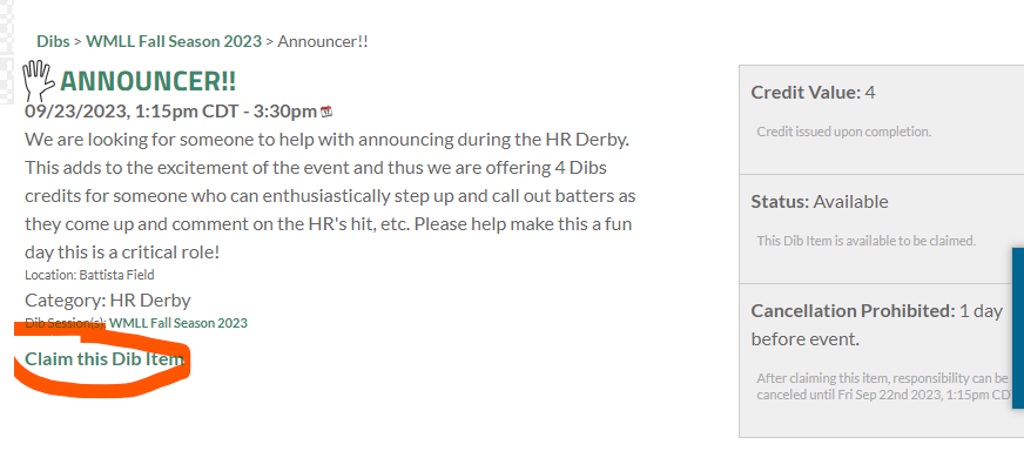
Once you have gone through all these steps you should be seeing a menu of Dibs Opportunities that you can browse. Once you find one that you'd like to claim click on the one you want under the ITEM column on the left. It should take you to a page that looks like this:
CLAIMING A DIB ITEM
To claim a Dib Item simply click on the link toward the bottom of the page (example on the image above with orange circle).
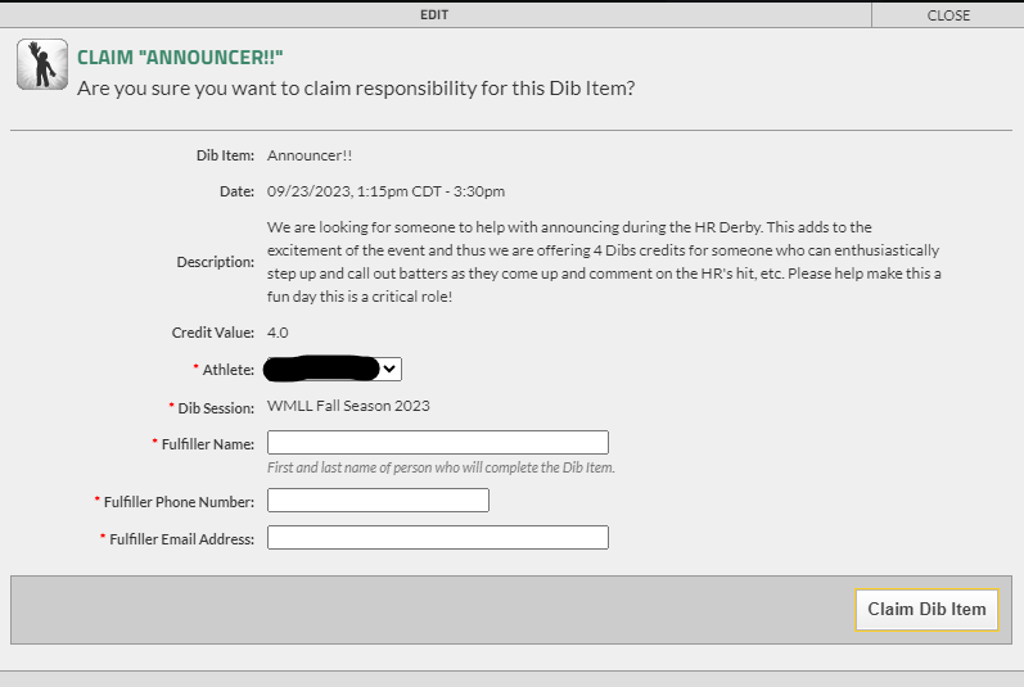
That should then bring up a window looking like the one below.
You will now be required to enter some information where the red stars are. In order for the Dibs tracking system to work well please select the Athlete from the drop-down. We are still working with SportsEngine technical support on why sometimes a parent name is listed under the Athlete drop-down but please select a player name for the Athlete.
The Fulfiller Name is the person who will be working the Dibs Item. Then also add the phone number and email address. The purpose of those is mainly so that WMLL can contact the fulfiller is a rainout cancels the game or any other reason we would need to reach out about the Dib Item.
Then just click Claim Dib Item